YouTube Thumbnail Size Guide: Perfect Dimensions, Formats & Optimization for 2026
Getting your YouTube thumbnail size wrong is one of the fastest ways to kill your video’s performance. A blurry, pixelated, or cropped thumbnail tells viewers your content is low-quality before they even click play.
YouTube has specific technical requirements for thumbnails, and ignoring them means your carefully designed thumbnail will look terrible on mobile devices (where 70% of YouTube views happen).
This comprehensive guide covers everything you need to know about YouTube thumbnail dimensions, formats, and optimization—backed by YouTube’s official specifications and best practices from top creators.
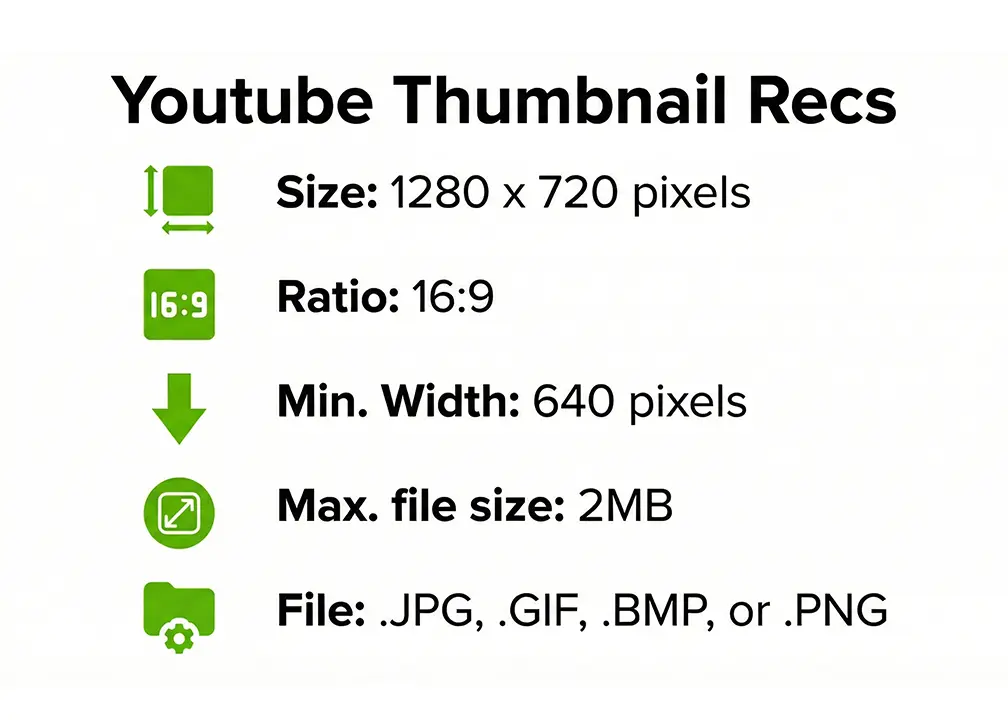
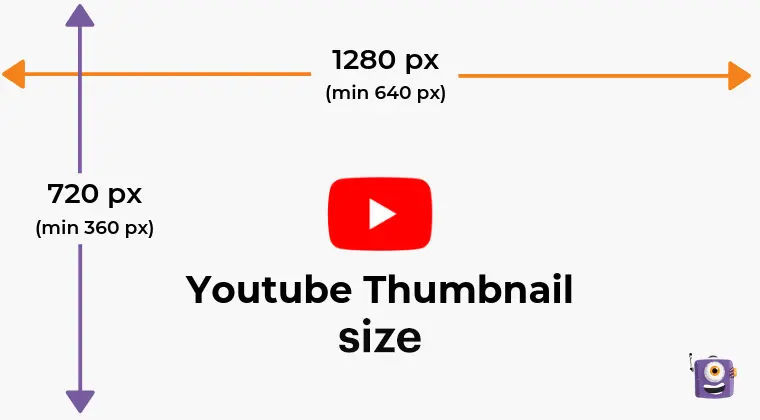 Caption: Complete breakdown of YouTube’s official thumbnail requirements
The Perfect Dimensions: What YouTube Officially Requires
Primary Specification: 1280 x 720 Pixels
YouTube’s official recommendation is 1280 x 720 pixels. This isn’t arbitrary—it’s the sweet spot that ensures your thumbnail looks sharp across all devices while staying under file size limits.
Why 1280 x 720?
- Scales down perfectly for mobile (156 x 88 pixels display)
- Scales up cleanly for desktop suggestions (full size)
- Matches HD video resolution (720p standard)
- Meets YouTube’s minimum width requirement of 640 pixels
Optional: 1920 x 1080 Pixels (Full HD)
Some creators use 1920 x 1080 pixels for improved sharpness on high-resolution displays. This is especially useful if:
- Your content targets desktop viewers primarily
- You use detailed graphics or small text
- You want maximum quality on 4K displays
Trade-off: Larger file size (must still stay under 2MB)
The 16:9 Aspect Ratio Rule
YouTube requires a 16:9 aspect ratio for all thumbnails. This means:
- 16 units wide for every 9 units tall
- Matches YouTube’s video player dimensions
- Prevents cropping, stretching, or black bars
Valid 16:9 dimensions:
- 1280 x 720 (recommended)
- 1920 x 1080 (high quality)
- 640 x 360 (minimum, not recommended)
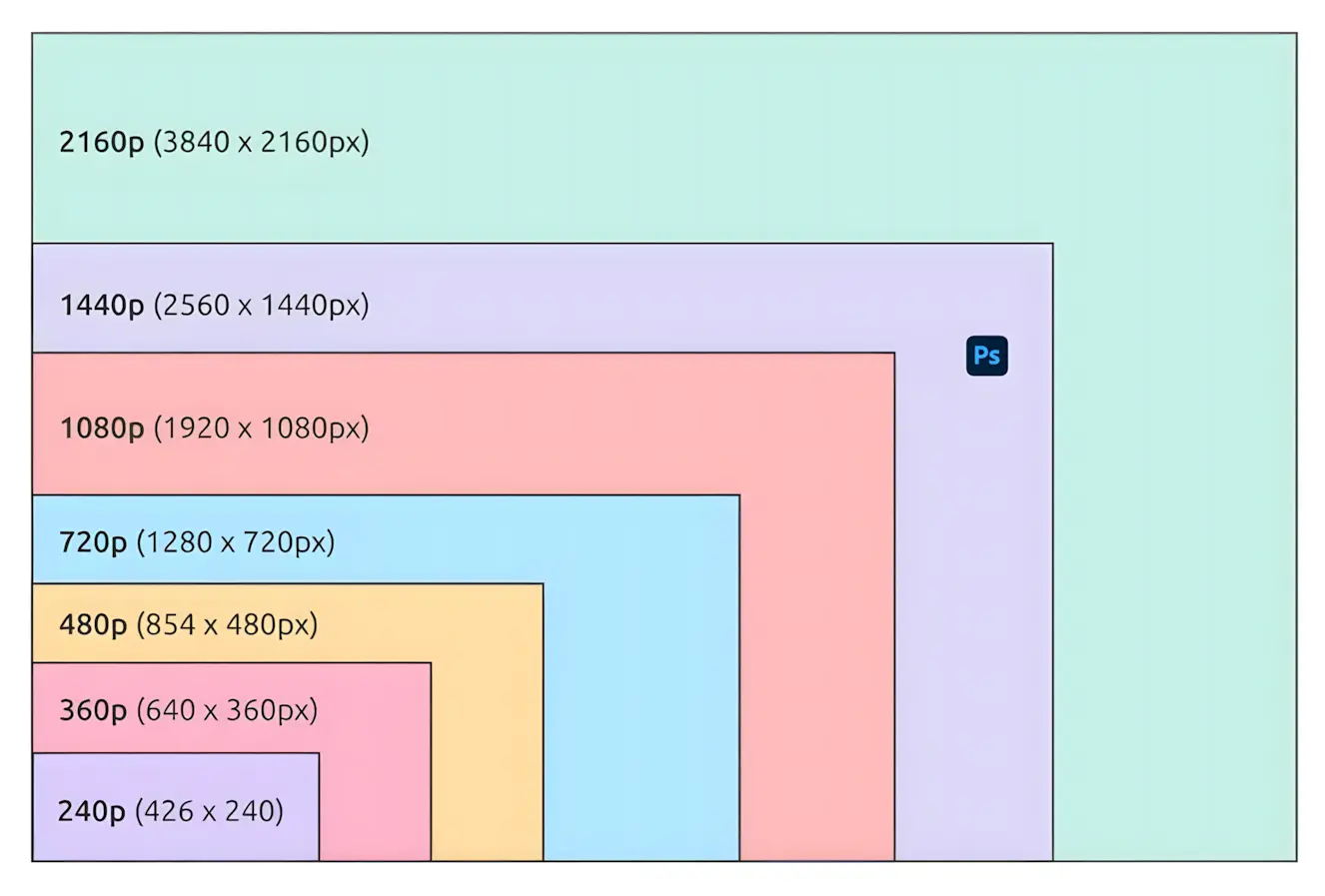 Caption: 16:9 aspect ratio ensures perfect fit across all YouTube interfaces
Format Comparison: JPG vs PNG vs WebP
YouTube accepts JPG, PNG, GIF, and BMP formats, but not all formats are equal.
JPG (JPEG) - Best for Most Thumbnails ✅
When to use: Photo-based thumbnails, realistic images, gradients
Pros:
- Smaller file sizes (typically 200-800KB)
- Faster loading times
- Best for images with many colors
- Universal compatibility
Cons:
- Lossy compression (some quality loss)
- Not ideal for sharp text or graphics
Recommended settings: 80-85% quality, sRGB color profile
PNG - Best for Graphics & Text ✅
When to use: Text-heavy thumbnails, logos, graphics with sharp edges
Pros:
- Lossless compression (no quality loss)
- Supports transparency (though YouTube doesn’t display it)
- Crystal-clear text rendering
- Sharp edges and details
Cons:
- Larger file sizes (600KB-1.5MB)
- Can approach 2MB limit quickly
Recommended settings: PNG-8 for simple graphics, PNG-24 for photos with text
GIF - Avoid for Thumbnails ❌
Why not: YouTube doesn’t support animated GIFs—only the first frame displays. Limited color palette makes images look worse than JPG or PNG.
WebP - Not Supported ❌
YouTube doesn’t accept WebP format (as of 2026). Stick to JPG or PNG.
Quality vs File Size: The 2MB Limit Challenge
YouTube enforces a strict 2MB maximum file size for video thumbnails (10MB for podcasts).
The Optimization Sweet Spot
For JPG images:
- Export at 80-85% quality (Photoshop/GIMP)
- This typically produces 400-800KB files
- Imperceptible quality loss to viewers
- Stays well under 2MB limit
For PNG images:
- Use PNG-8 for simple graphics (under 500KB)
- Use PNG-24 with compression for photo+text (under 1.5MB)
- Run through TinyPNG or similar compressor
Compression Tools That Don’t Destroy Quality
Free options:
- TinyPNG (online): Reduces PNG size by 60-80% without visible quality loss
- JPEGmini (online): Compresses JPG to 80% of original size
- Squoosh (by Google): Advanced compression with preview
- Photoshop’s “Save for Web”: Precise control over quality/file size
Workflow:
- Design thumbnail at 1280 x 720 or 1920 x 1080
- Export as JPG at 85% quality or PNG-24
- If over 2MB, run through TinyPNG
- Check file size (should be 400KB-1.5MB)
- Preview at small size (mobile test)
Resolution Deep Dive: DPI Myths Debunked
The 72 DPI vs 300 DPI Confusion
Here’s the truth: DPI (dots per inch) is irrelevant for screens. It only matters for print.
Why 300 DPI doesn’t help YouTube:
- Screens display in pixels, not inches
- A 1280 x 720 image at 72 DPI looks identical to 1280 x 720 at 300 DPI on YouTube
- Higher DPI only increases file size unnecessarily
What actually matters: Pixel dimensions (1280 x 720)
Screen Resolution Considerations
Standard displays (1080p): 1280 x 720 looks perfect
Retina/4K displays: 1920 x 1080 provides sharper quality (if under 2MB)
Mobile screens: YouTube automatically scales down, so start with full resolution
Future-Proofing for 4K
YouTube now supports up to 3840 x 2160 (4K) thumbnails, but this is overkill for most creators:
- File sizes typically exceed 2MB
- Minimal benefit for thumbnails (unlike full videos)
- Stick to 1920 x 1080 maximum
Mobile Size Optimization: Where 70% of Views Happen
How Thumbnails Display on Mobile
Over 69-70% of YouTube views happen on mobile devices, making mobile optimization critical.
Display sizes by device:
Smartphones:
- Search results: ~156 x 88 pixels
- Home feed: ~168 x 94 pixels
- Suggested videos: ~168 x 94 pixels
Tablets:
- Search results: ~246 x 138 pixels
- Home feed: ~280 x 158 pixels
Desktop:
- Search results: ~246 x 138 pixels
- Suggested videos (sidebar): ~168 x 94 pixels
- Homepage large: ~396 x 222 pixels
- Full size (video suggestions): 1280 x 720 pixels
Mobile-First Design Principles
1. Text must be LARGE:
- Minimum 60-80px font size for main text
- 3-5 words maximum
- High contrast (white text on dark, or vice versa)
- Thick stroke/outline (10-15px)
2. Simplify composition:
- One clear focal point (face or object)
- Uncluttered background
- Bold, saturated colors
- High contrast everywhere
3. Test at small size:
- Resize to 168 x 94 pixels
- Can you still read text?
- Is the subject clear?
- Do colors still pop?
Smart TV Considerations
YouTube is increasingly watched on TVs. Your thumbnail should:
- Look sharp at large sizes (supports 1920 x 1080)
- Be visible from 8-10 feet away
- Have sufficient contrast for TV displays
Text Size Guidelines: Readability Rules
Minimum Font Sizes
Based on mobile readability requirements:
Main text/headline:
- Minimum: 60-80px (at 1280 x 720 canvas)
- Recommended: 100-140px
- Maximum: 200-250px (don’t overwhelm)
Secondary text:
- Minimum: 40-50px
- Recommended: 60-80px
Fine print (avoid if possible):
- Minimum: 30px
- Not recommended for thumbnails
Text Treatment for Maximum Readability
Stroke/Outline:
- 10-15px white stroke on colored text
- OR 10-15px black stroke on white text
- Ensures readability on any background
Drop Shadow:
- 6-8px distance
- 80-90% opacity
- 135° angle (bottom-right)
- Adds depth and separation
Background:
- Place text over solid color areas
- Avoid busy backgrounds behind text
- Use blur or darken background under text
Safe Zones and Margins: Avoiding YouTube UI Overlays
YouTube’s interface overlaps your thumbnail in specific areas. Design around these.
YouTube UI Overlays
Bottom-right corner: Video duration timestamp (e.g., “10:24”)
- Size: ~60 x 20 pixels (scaled)
- Always present on desktop/mobile
- Don’t place text or important elements here
Bottom bar (mobile app only):
- Additional overlay on mobile
- Keep bottom 80-100 pixels relatively clear
Safe Zone Specifications
Desktop safe zone: Center 1100 x 620 pixels Mobile safe zone: Center 960 x 540 pixels
Practical margins:
- Top/Bottom: 50-60 pixels from edge
- Left/Right: 90-100 pixels from edge
- Bottom-right corner: 150 x 100 pixel exclusion zone
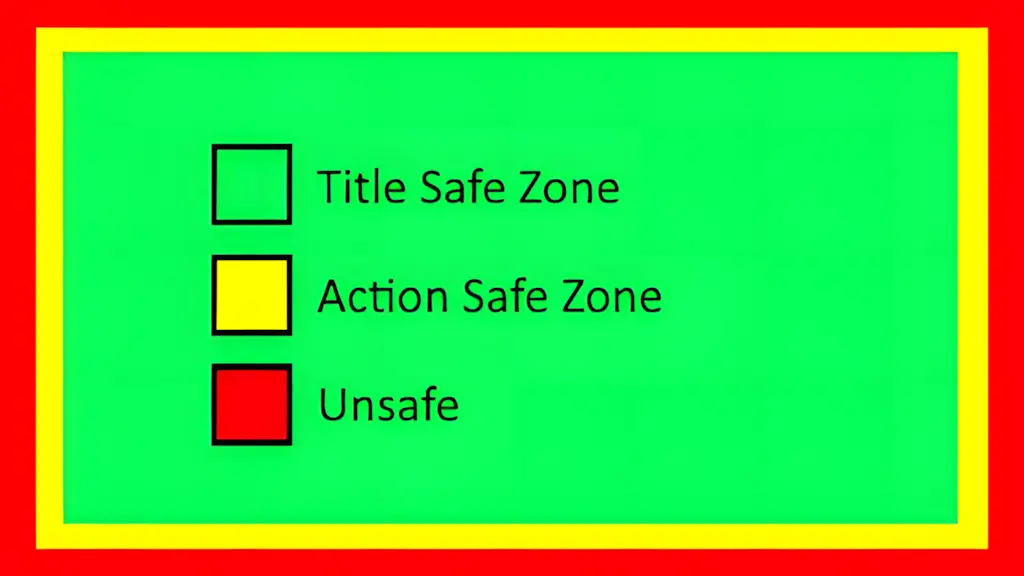 Caption: Keep important elements within the green safe zones
Center Focus Area Strategy
- Place main subject (face/object) in center 60% of frame
- Position text in top-left, top-center, or top-right
- Leave breathing room around edges (looks cleaner)
Export Settings Masterclass
Photoshop “Save for Web” Settings
For JPG thumbnails:
- File > Export > Save for Web (Legacy)
- Format: JPEG
- Quality: 80-85% (sweet spot)
- Optimized: ✓ (checked)
- Convert to sRGB: ✓ (checked)
- Preview: Check file size (aim for 400-800KB)
For PNG thumbnails:
- File > Export > Save for Web (Legacy)
- Format: PNG-24
- Interlaced: ✗ (unchecked)
- Convert to sRGB: ✓ (checked)
- If over 2MB, use PNG-8 or compress
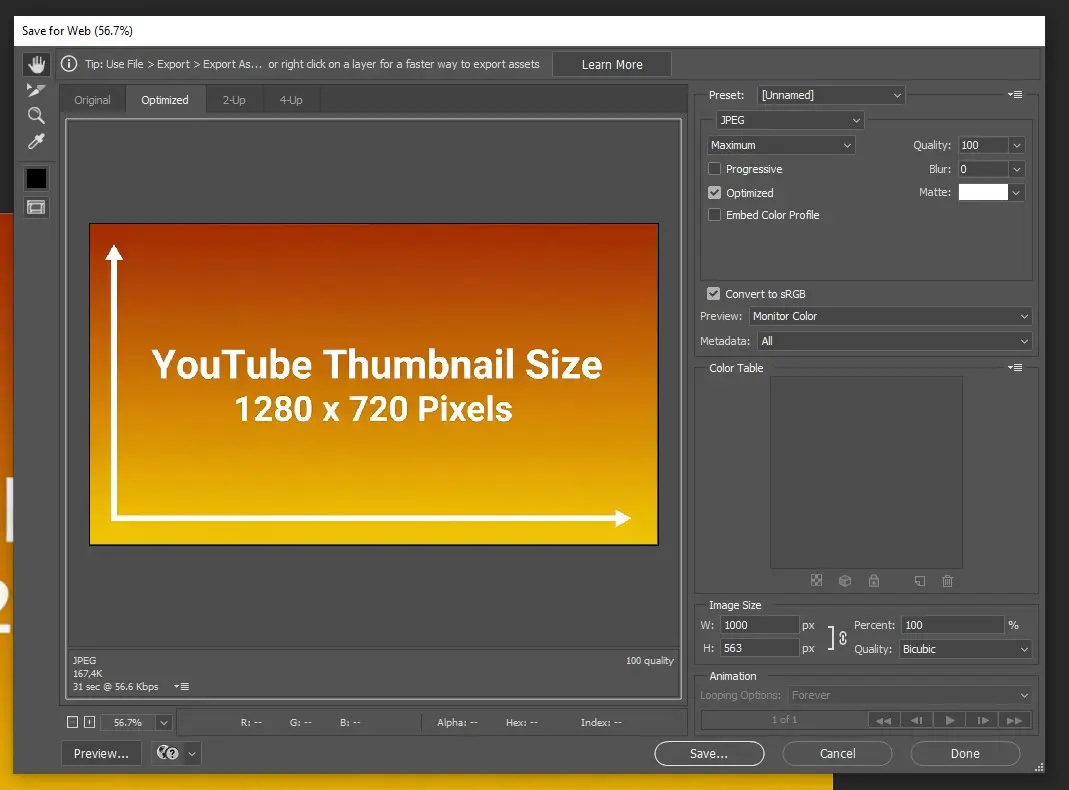 Caption: Optimal Photoshop “Save for Web” settings for YouTube thumbnails
Canva Download Settings
Recommended Canva export:
- Download button (top-right)
- File type: PNG (for text-heavy) or JPG (for photos)
- Quality: Standard (not “High” - wastes file size)
- Download
- Check file size: if over 2MB, re-download as JPG
Note: Canva automatically exports at correct dimensions if you used their YouTube thumbnail template.
GIMP Export Settings
For JPG:
- File > Export As
- Select .jpg extension
- Quality: 85-90
- Progressive: ✗ (off)
- Save EXIF/XMP/IPTC: ✗ (off, reduces file size)
Color Profile: sRGB vs Adobe RGB
Always use sRGB for web/YouTube:
- sRGB is the standard color space for screens
- Adobe RGB is for print
- Using Adobe RGB on YouTube can cause dull colors
Common Size Mistakes That Kill Thumbnails
Mistake #1: Wrong Aspect Ratio
Problem: Uploading 4:3, 1:1 (square), or other ratios Result: YouTube adds black bars or crops awkwardly Solution: Always use 16:9 (1280 x 720 or 1920 x 1080)
Mistake #2: Text Too Small
Problem: Using 20-30px text that’s unreadable on mobile Result: Viewers can’t read your message, lower CTR Solution: Minimum 60-80px, ideally 100-140px
Mistake #3: File Size Over 2MB
Problem: Exporting PNG-24 at 1920 x 1080 with complex graphics Result: YouTube rejects upload Solution: Compress with TinyPNG or switch to JPG
Mistake #4: Low Resolution (Below 640px Width)
Problem: Uploading small images (e.g., 480 x 270) Result: Blurry, pixelated thumbnails that look unprofessional Solution: Always start with 1280 x 720 minimum
Mistake #5: Ignoring Mobile Display
Problem: Designing only for desktop, text unreadable on phone Result: 70% of viewers see a bad thumbnail Solution: Test at 168 x 94 pixels before finalizing
 Caption: 5 most common thumbnail size mistakes and how to avoid them
Testing Across Devices: QA Before Publishing
Preview Tools
YouTube Studio built-in preview:
- Upload video as “Unlisted”
- Check thumbnail preview
- View on actual phone before publishing
TubeBuddy Thumbnail Preview:
- Simulates search results, suggested videos, mobile
- Free tool for YouTube creators
VidIQ Mobile Preview:
- Shows how thumbnail appears in YouTube app
- Desktop extension
Real Device Testing (Best Method)
Essential test:
- Upload thumbnail to unlisted video
- Open YouTube app on your phone
- View in search results and home feed
- Ask: Can I read the text? Is the subject clear?
Desktop test:
- View in Incognito/Private window
- Check search results, suggested sidebar, homepage
Browser Emulators
Chrome DevTools:
- Right-click > Inspect
- Toggle device toolbar (mobile icon)
- Select iPhone/Android device
- Navigate to your video
- View thumbnail
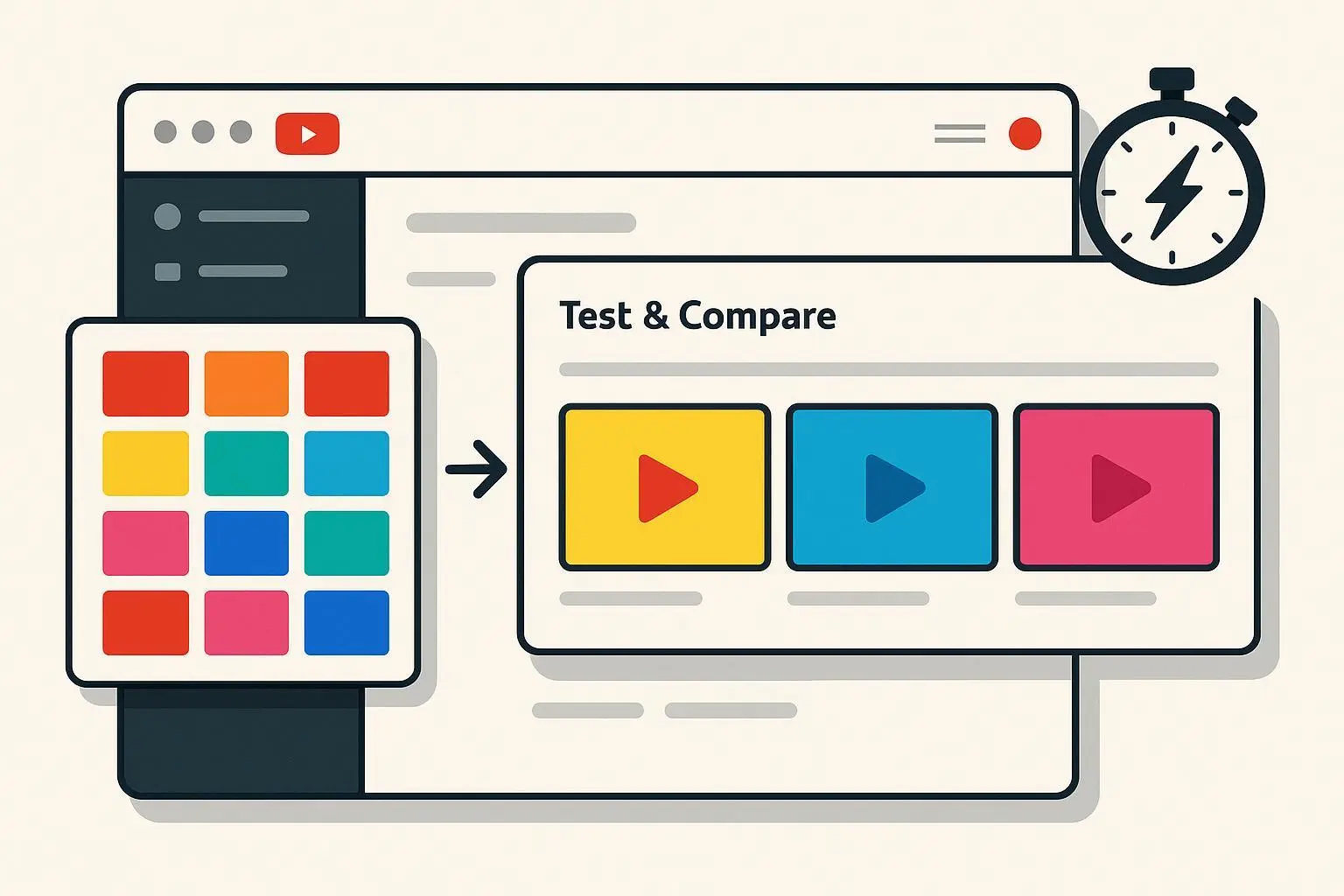 Caption: Complete testing process before publishing
Platform-Specific Considerations
YouTube vs YouTube Music
YouTube (standard): 1280 x 720, 16:9 aspect ratio
YouTube Music/Podcasts: 1280 x 1280, 1:1 square aspect ratio
- Different spec for audio-focused content
- 10MB file size limit (vs 2MB for videos)
Embedded Players
When your video is embedded on websites:
- Thumbnail displays until viewer clicks play
- Can be any size (site-dependent)
- Your 1280 x 720 thumbnail scales appropriately
- Maintains aspect ratio
Social Media Shares
When shared on Facebook, Twitter, etc.:
- Thumbnail becomes the preview image
- Platforms may crop differently
- Design with center focus to accommodate
YouTube Shorts Thumbnails
YouTube Shorts use 9:16 vertical format, but custom thumbnails should still be 1280 x 720 (16:9)
- YouTube auto-crops for Shorts display
- Standard thumbnail shows in search/suggestions
Templates and Checklists
Size Reference Template (Download Ready)
Pre-sized Photoshop template:
- Canvas: 1280 x 720 px, 72 DPI, RGB
- Safe zone guides: 1100 x 620 px (center)
- UI overlay guides (bottom-right timestamp area)
- Text size reference (60px, 100px, 140px)
- Margin guides (90px left/right, 50px top/bottom)
Canva template:
- Search “YouTube Thumbnail” in Canva
- Auto-sized to 1280 x 720
Pre-Flight Checklist
Before uploading your thumbnail, verify:
Technical specs:
- ✅ Dimensions: 1280 x 720 (or 1920 x 1080)
- ✅ Aspect ratio: 16:9
- ✅ File format: JPG or PNG
- ✅ File size: Under 2MB
- ✅ Color profile: sRGB
Design elements:
- ✅ Text minimum 60px (ideally 100-140px)
- ✅ High contrast colors
- ✅ No text in bottom-right corner (timestamp area)
- ✅ Main subject in center 60% of frame
- ✅ Margins: 90px left/right, 50px top/bottom
Mobile optimization:
- ✅ Tested at 168 x 94 pixels (mobile size)
- ✅ Text readable at small size
- ✅ Subject clear and recognizable
- ✅ Colors vibrant and eye-catching
Quality assurance:
- ✅ No pixelation or blur
- ✅ Proper compression (80-85% JPG quality)
- ✅ Viewed on actual mobile device
- ✅ Matches video content (not clickbait)
Conclusion: Size Matters, But Design Matters More
YouTube’s official thumbnail size is 1280 x 720 pixels at a 16:9 aspect ratio, under 2MB, in JPG or PNG format. These technical specifications are non-negotiable.
But perfect dimensions mean nothing if your design is weak. Focus on:
- Mobile readability (70% of viewers)
- Bold, simple composition (one clear subject)
- High contrast text (100-140px minimum)
- Testing before publishing (preview on actual devices)
Quick reference:
- Standard: 1280 x 720 px, JPG at 85% quality, ~600KB
- High quality: 1920 x 1080 px, PNG or JPG, under 2MB
- Aspect ratio: Always 16:9
- Text size: 100-140px for main text
Get the size right, then focus on making thumbnails viewers can’t resist clicking.
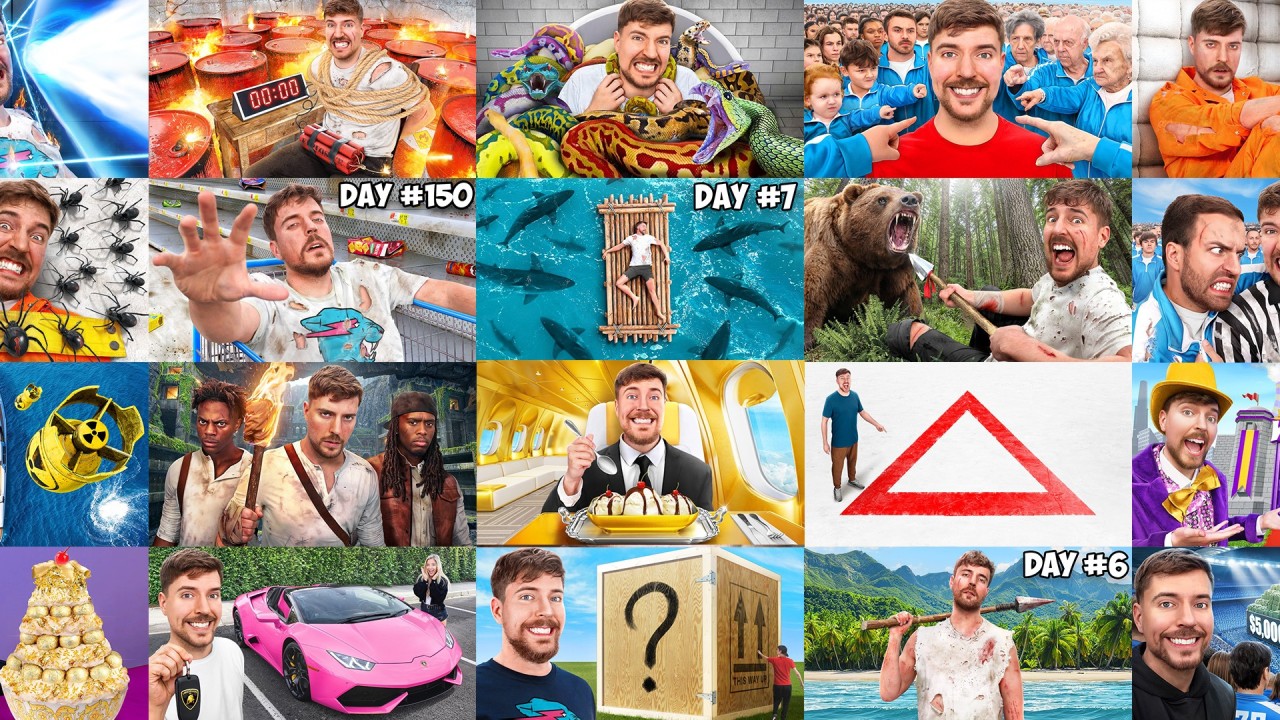
Want to learn MrBeast’s complete thumbnail formula? Check out our comprehensive guide: MrBeast Thumbnail Secrets: The $100M Design Formula