How to Get a YouTube Video Transcript [3 Free Methods 2026]
Watching a full video just to extract one quote wastes 20+ minutes per session. These three methods retrieve a complete YouTube transcript in under 10 seconds, no technical knowledge required.
The fastest way: paste the YouTube URL into a free transcript generator and get the full text instantly - try it here.
This guide is part of the YouTube SEO tools collection at Touhfa.art.
Method 1 - Use a Free YouTube Transcript Generator (Fastest)
A dedicated transcript tool is the most efficient approach. It bypasses the standard interface and extracts the subtitle track directly, processing fragmented caption data into a clean, readable document.
How It Works
The tool accesses the closed caption (CC) track attached to the video - either manually uploaded by the creator or auto-generated by YouTube’s speech recognition engine. Once located, the tool compiles the timestamped subtitle blocks into continuous, readable text.
Modern extractors support all available subtitle languages on any video. The process requires no API key, no signup, and no file upload.
Step-by-Step
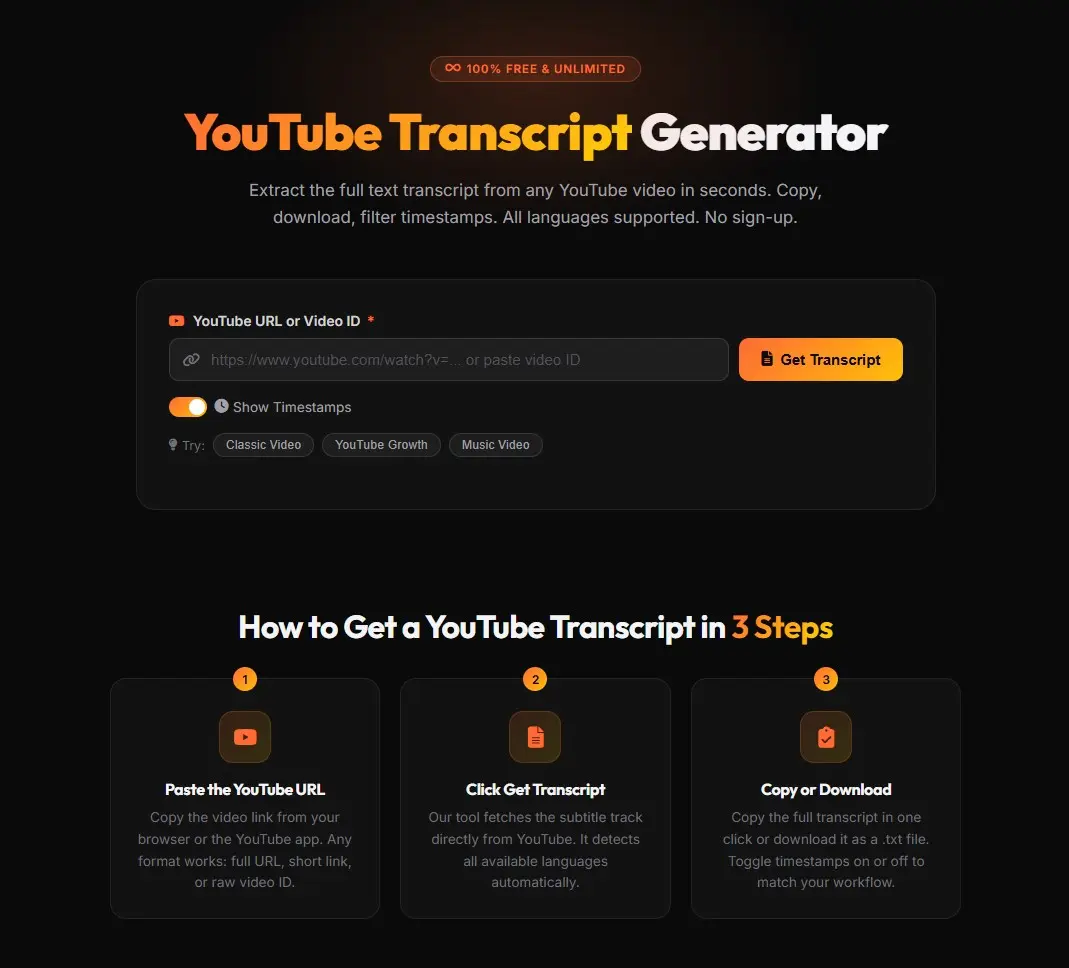
1. Paste the URL
Copy the video link from your browser or the YouTube app. Any format works: full URL (youtube.com/watch?v=...), short link (youtu.be/...), or raw video ID.
2. Click Get Transcript The tool fetches the available subtitle tracks and detects all languages automatically. Results appear in 2 to 5 seconds.
3. Copy or Download
Copy the full text in one click, or download it as a .txt file. Toggle timestamps on or off depending on your workflow.
Try the Free YouTube Transcript Generator
But what if you prefer to stay inside YouTube itself?:
Method 2 - YouTube’s Built-in Transcript Feature (No Tools)
YouTube has a native transcript panel built directly into the player. It works without any external tool, though it has some limitations.
Which Videos Have This Feature?
The built-in transcript is not available on every video. It appears when:
- The creator manually uploaded a subtitle file, or
- YouTube’s auto speech recognition (ASR) successfully processed the audio
It will be missing when:
- The video has no recognizable speech (music, ambient sound)
- Audio quality is too poor for the ASR to process
- The creator has disabled captions in their channel settings
Auto-generated transcripts can also contain errors with complex accents or technical vocabulary, so review them carefully for research use.
Step-by-Step on Desktop
1. Expand the description Below the video player, click “…more” to fully expand the description panel.
2. Find the Transcript section Scroll to the very bottom of the expanded description. A section labeled “Transcript” appears there.
3. Click “Show transcript” A panel opens to the right of the player showing the full text synchronized with the video. Use the three-dot icon in the transcript panel to toggle timestamps off for cleaner text. Then highlight and copy the text.
Step-by-Step on Mobile
The transcript feature is only available in the official YouTube app (iOS or Android) - not in mobile browsers.
- Open the app and play the video
- Tap “…more” below the player to expand the description
- Scroll to the bottom and tap “Show transcript”
Note: On mobile, you cannot highlight or copy text directly from the transcript panel. If you need a text file from your phone, use Method 1 instead.
And there’s one more method worth knowing:
Method 3 - Copy the Auto-Captions Text Manually
This is a fallback for when a video has visible captions on screen (the CC icon is active) but the “Show transcript” button is missing from the description.
When to Use It
This happens during platform interface updates or A/B testing periods when the transcript button is temporarily hidden. If captions are rendering on screen, the text data exists in your browser - it can be harvested manually.
How
- Enable captions on the video player by clicking the CC button
- Open the CC settings panel (three-dot menu below the player)
- Pause the video and manually select the visible caption text
- Copy it section by section using standard copy commands (Ctrl+C or Cmd+C)
For faster manual extraction, browser extensions like YouTube ClipText Pro read the active caption stream and provide a “select all” export without querying any API.
But what do you actually do with the transcript?:
5 Real Use Cases for YouTube Transcripts
Getting the raw text is just the first step. Here is how to use it to get real work done:
1. Note-taking and research (students and analysts) Export the transcript into Notion, Obsidian, or a Word document. It becomes a searchable, quotable database. Extensions can add linked timestamps to each paragraph, ensuring cited quotes trace back to their exact source.
2. Repurpose into blog posts (content creators) Strip filler words (“um,” “uh”), add headings, and rewrite for reading. A 10-minute video becomes a 600-word article optimized for search. Use our YouTube Tag Generator and YouTube Title Generator to build SEO-ready metadata for the companion video.
3. Feed into AI tools for summaries Paste the transcript into ChatGPT, Claude, or Gemini and prompt: “Summarize this in 5 bullet points” or “Write a blog post based on this content.” Clean transcripts (timestamps off) give the AI much better output than raw, fragmented caption text.
4. Extract keywords for YouTube SEO Transcripts from top-ranking competitor videos reveal the exact vocabulary their audience uses. Analyze that language to find long-tail keyword gaps for your own content strategy.
5. Accessibility and captions review Accurate captions are required for d/Deaf and hard-of-hearing audiences. They also get crawled by search engines, directly boosting video SEO. Research from Discovery Digital Networks found a 7.3% increase in views attributed to accurate captions. A clean transcript is the foundation for translating captions into additional languages.
Frequently Asked Questions
Can I get a transcript in any language? Yes. The free transcript generator detects every available subtitle language on the video - Arabic, English, French, Spanish, Japanese, and more. Switch between them instantly in the language selector after the transcript loads.
Do all YouTube videos have transcripts? No. Transcripts require either a manually uploaded subtitle file or a successful auto-caption pass. Videos with no speech, poor audio quality, or creator-disabled captions will return no transcript.
Can I download the transcript as a file?
Yes, using the free transcript generator. Click the Download button to save the transcript as a .txt file directly to your device. The native YouTube interface only allows copy-paste.
Is it legal to use YouTube transcripts? Extracting text for personal note-taking, research, or educational analysis falls under Fair Use in most jurisdictions. Publishing someone else’s full transcript verbatim as commercial content without attribution or transformation is a copyright violation. Always credit the original creator and ensure your use adds original value.
Do YouTube Shorts have transcripts? Yes. Paste the Shorts URL into the transcript generator the same way as a regular video. The tool processes Shorts URLs identically. Natively, tap the three-dot menu on the Short and select “Captions” to view the text overlay.
Summary
| Method | Speed | Requires | Best For |
|---|---|---|---|
| Free Generator Tool | 2-5 seconds | YouTube URL only | Any video, all languages, file download |
| YouTube Built-in Feature | Instant | Desktop browser or app | Quick reading, no external tools |
| Manual Caption Copy | Minutes | CC enabled on player | Fallback when built-in button is missing |
Ready to extract your first transcript? The free tool handles all languages, supports every URL format, and downloads as .txt with one click.
Get My YouTube Transcript - Free Tool
Read next: YouTube Description SEO Guide - Best Practices 2026