
How to Upload YouTube Shorts the Right Way: Settings and Secrets for Reach (2026)
Why do channels barely a few weeks old rack up millions of views on YouTube Shorts, while established channels with 50,000+ subscribers struggle to break a few hundred? The answer isn’t just “better content.” The upload settings and the psychological engineering of the Hook are the decisive factors that determine how the algorithm distributes your Short.
Shorts operate on an entirely separate recommendation engine compared to long-form videos. If you treat a Short like a regular YouTube upload, it is guaranteed to underperform — or die entirely in the Shorts Feed.
In this comprehensive 2026 guide, you will learn every upload setting specific to Shorts, the hidden thumbnail trick, when to use trending audio (and when it will backfire), and the psychology behind the first 3 seconds that force viewers to stop scrolling.
→ This guide is specifically for short-form vertical content. For the complete long-form upload strategy, start here: How to Upload Videos to YouTube the Right Way (2026 Guide).
Shorts vs. Regular Videos: The Technical Differences
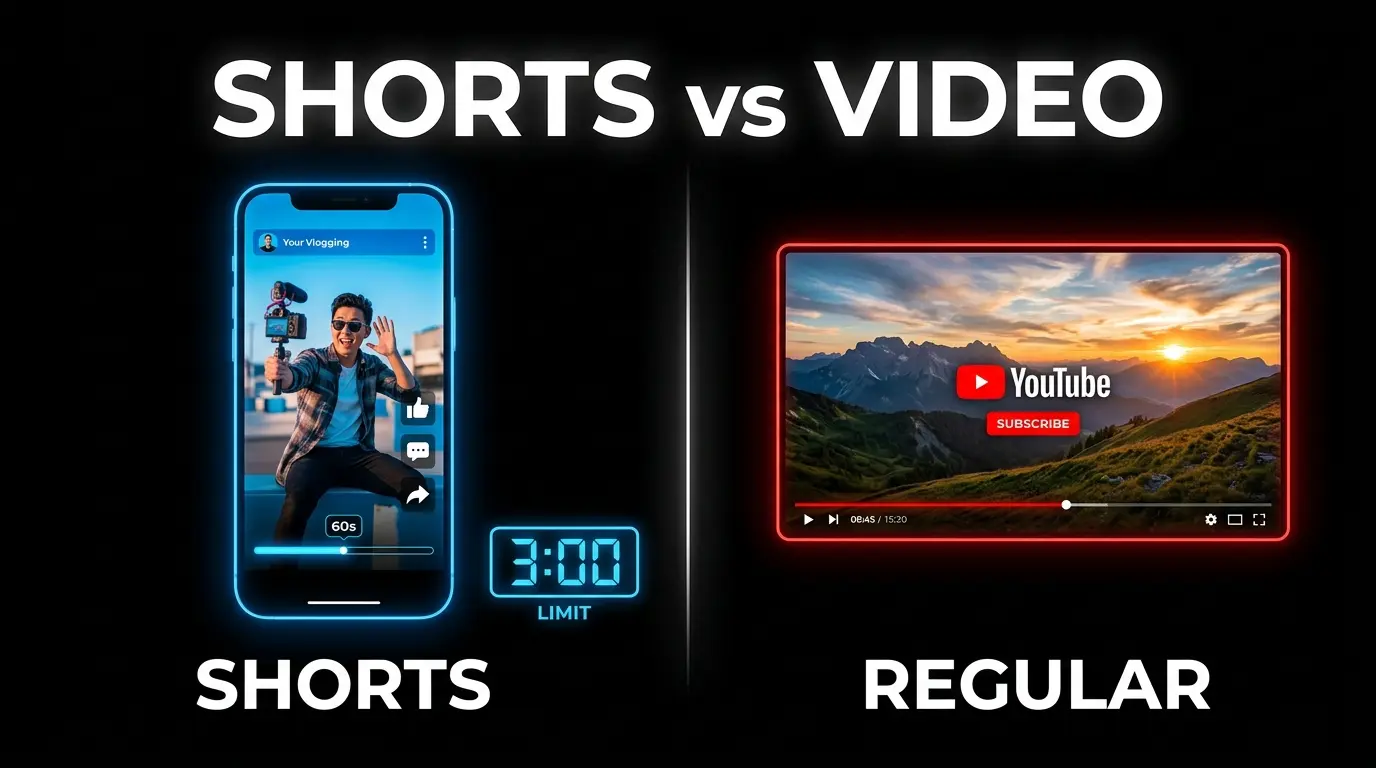
Before uploading, you must understand how YouTube’s systems mechanically differentiate short-form from long-form content. There is no manual toggle — YouTube decides automatically based on strict technical parameters: the aspect ratio and the duration of the uploaded file.
| Feature | YouTube Short | Regular YouTube Video |
|---|---|---|
| Aspect Ratio | 9:16 Vertical (or 1:1 Square) | 16:9 Horizontal |
| Maximum Length | 3 Minutes (2026 update) | Unlimited |
| Primary Discovery | Shorts Feed (auto-scrolling) | Homepage + Search |
| Monetization | Automatic share from the Shorts revenue pool | Manual mid-roll ad placement |
| Thumbnail | Requires an embedded-frame trick | Direct image upload |
Critical point: Any video uploaded with a vertical aspect ratio and a duration of 3 minutes or less will be forcibly classified as a Short after the 2026 updates. If your goal is to avoid this classification, you must use horizontal dimensions. A video that is 3 minutes and 1 second long will automatically be treated as a regular video, killing its chances in the Shorts Feed entirely.
Where to Upload: 3 Methods Compared
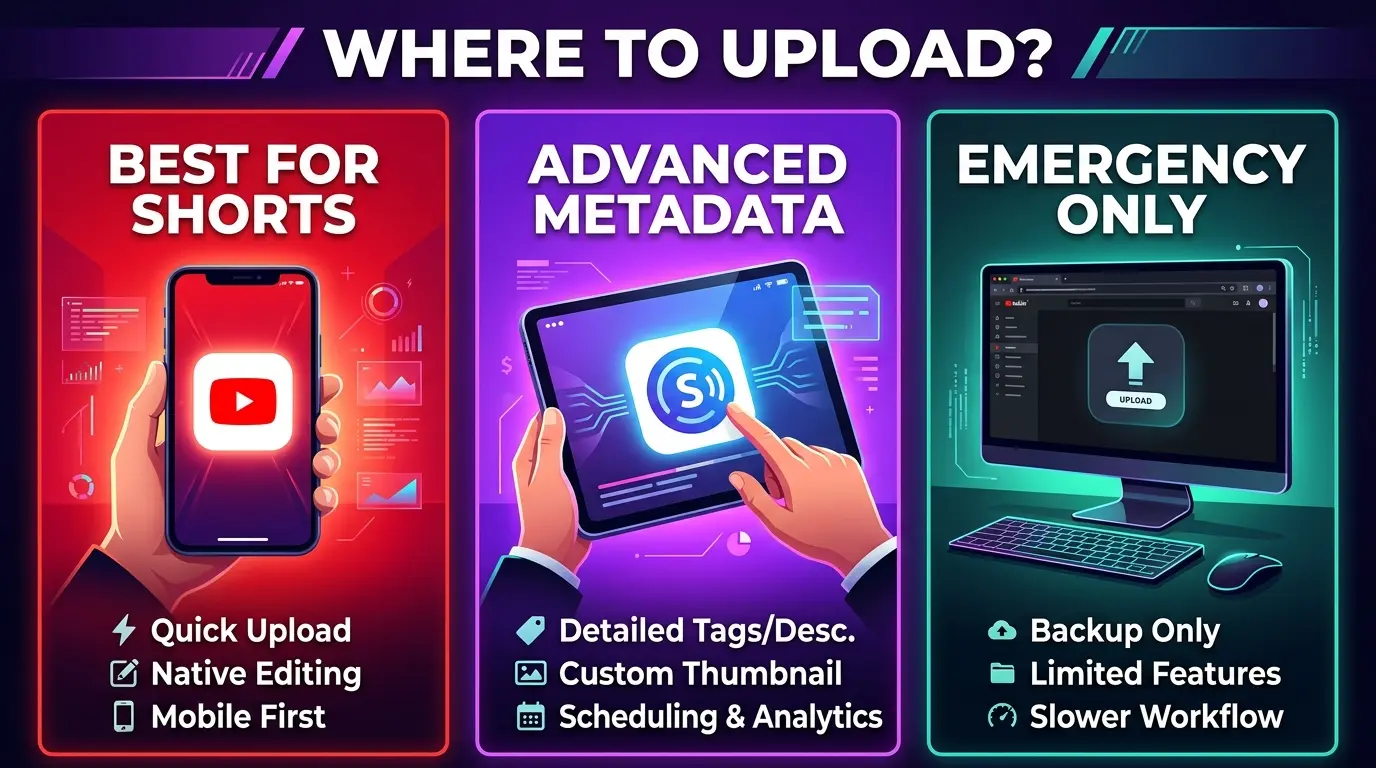
Your upload platform directly determines which native features you have access to — and which critical optimizations you’ll miss.
Method 1: YouTube App (The Best Choice for Shorts)
The standard red YouTube App on your smartphone is the most integrated and powerful option for Shorts. Its exclusive advantages include:
- ✅ YouTube Sound Library: Directly access trending music and sound effects without copyright strike risks — the licenses are handled automatically by the platform.
- ✅ Native editing tools: Apply filters, visual effects, and text overlays without needing a third-party editor.
- ✅ Thumbnail frame selection: This is the only platform where you can manually select which frame from your video serves as the thumbnail via the edit (pencil) icon.
Method 2: YouTube Studio App (For Advanced Metadata)
The Studio App is not ideal for starting the upload, but it serves as the essential companion app afterward:
- ✅ Granular control over Tags, monetization options, and product tagging (YouTube Shopping).
- ✅ Precise scheduling with date and time selection.
Method 3: Desktop Browser (Emergency Only)
Uploading Shorts via a computer browser is the weakest method in 2026:
- ❌ Historically lacked the ability to easily select a custom thumbnail frame, resulting in YouTube picking a random, often blurry, frame from your video.
- While YouTube has recently introduced the “Test & Compare” feature for some accounts to A/B test multiple thumbnails on desktop, the simple direct frame selection available in the mobile app remains the strategic first choice.
- Verdict: Use desktop only if your phone is completely unavailable.
→ For a complete guide to managing uploads from your phone, see our Mobile Upload Guide.
The Shorts Thumbnail Trick (Crucial)
“Aren’t thumbnails irrelevant since viewers just auto-scroll through the Shorts Feed?”
Absolutely not. While thumbnails don’t display in the auto-scrolling Shorts Feed itself, your Shorts also appear on the standard YouTube Homepage, in Google Search results, on your Channel Page, and in Suggested Video recommendations. In all of these surfaces, the thumbnail is the only element driving the click decision. Shorts that break through to the Homepage consistently generate views that are multiples of what they earn from the Feed alone.
The Problem
YouTube does not allow you to upload a separate .JPG or .PNG image as a custom thumbnail for a Short via mobile after publishing. Once the Short is live, the thumbnail is locked.
The Solution: The Embedded Frame Trick
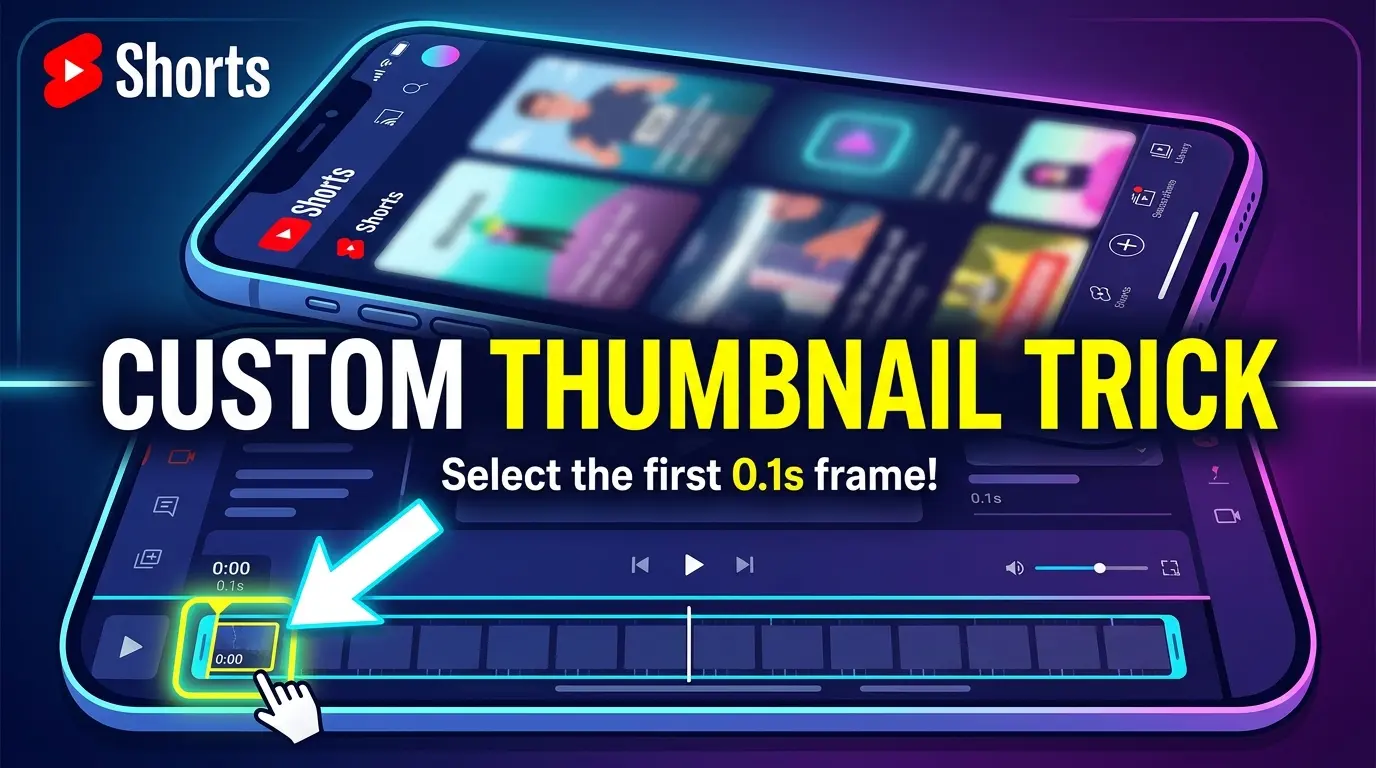
To get a professional, custom thumbnail on your Short, you must embed the image directly inside the video file during the editing phase:
- Design your thumbnail in Canva or Photoshop using a 9:16 vertical ratio (1080×1920 pixels). Pay attention to safe zones — avoid placing critical text where the YouTube UI elements (like button, title, description) will overlap on screen.
- In your editing software (CapCut, Premiere Pro, DaVinci Resolve), place the designed thumbnail image at the very beginning or end of your video timeline. Make it last for just 0.1 seconds — it will flash so fast the viewer won’t consciously notice it during playback.
- During upload via the YouTube mobile app, tap the Pencil Icon (Edit Thumbnail) visible on the video preview screen. Scrub the timeline slider to that exact 0.1-second mark, select it, and tap Done.
You now have a fully custom, click-optimized thumbnail on your Short.
(For detailed thumbnail sizing specs and mobile safe zones, see our YouTube Thumbnail Size Guide. For design techniques that boost clicks, read our High CTR Thumbnails Guide).
Audio: When to Use the Sound Library — And When It Will Backfire
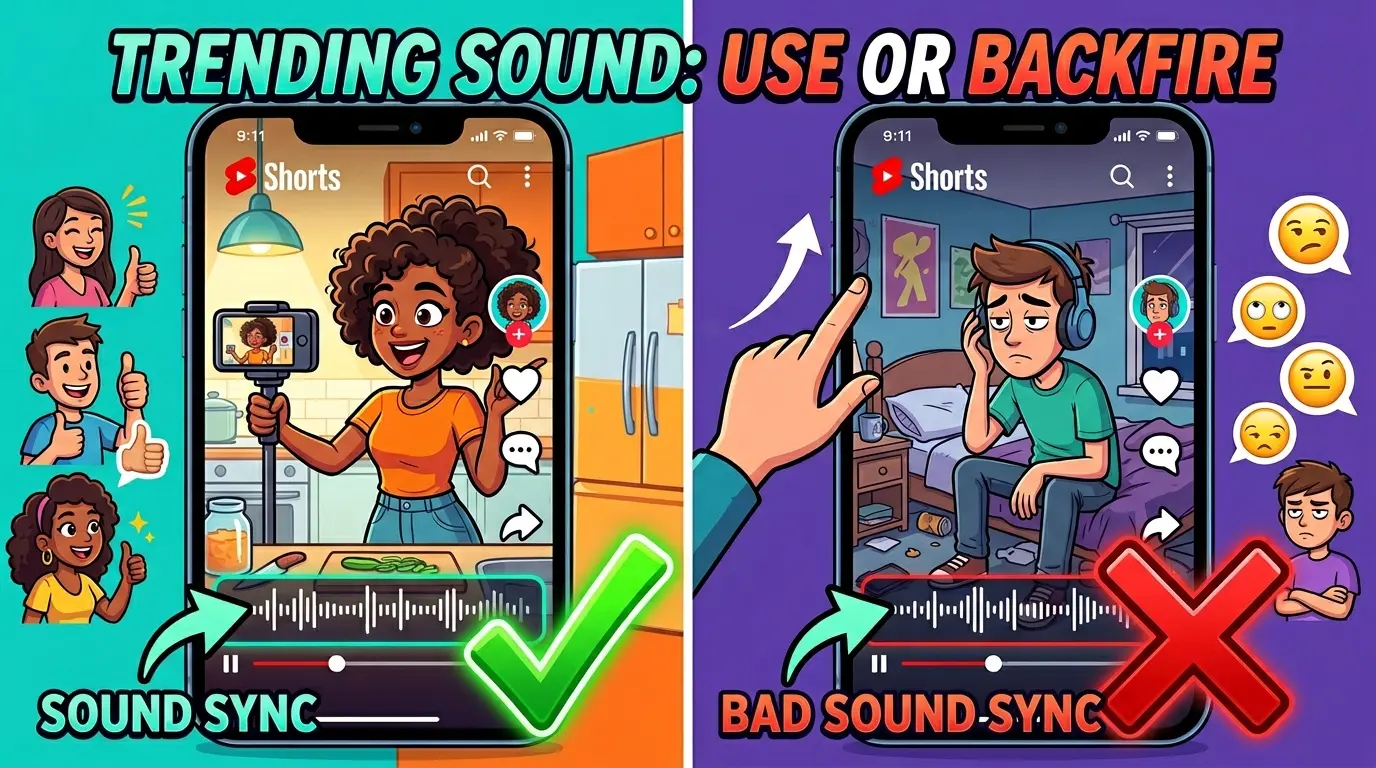
Audio in Shorts isn’t just decoration — it’s a core pillar of the algorithmic indexing mechanism. Understanding when to use trending sounds and when to avoid them is the difference between viral growth and algorithmic death.
The One Audio Rule
- ✅ DO use a trending sound if it naturally fits the vibe, pacing, or humor of your content.
- ❌ DON’T use a trending sound if it feels forced, out of context, or drowns out your voice just to “hack” the algorithm.
What Happens When You Use a Trending Sound
When you add a trending song via the native YouTube App, the algorithm links your Short to the cluster of all other videos using that same sound. This instantly exposes your video to a completely new audience segment outside your regular subscribers.
- If your content resonates with that new audience → watch-time surges, completion rates climb, and the algorithm pushes your Short virally.
- If your content is irrelevant to that audience → they swipe away instantly, the algorithm registers a high “Swipe Away” rate, and your Short’s reach is killed immediately. The damage can be worse than not using any trending audio at all.
The “Zero Volume” Myth Is Dead
In the past, some creators added a trending song and turned its volume down to 0%, hoping to hijack the cluster traffic for free. This no longer works in 2026. YouTube’s AI systems now detect muted audio tracks and evaluate the mismatch between visual and audio components. Using a sound you don’t actually want provides zero algorithmic benefit and risks confusing the system’s content classification.
Title, Description, and the “Related Video” Feature
Metadata optimization for Shorts demands surgical precision due to the extremely limited visual real estate on mobile screens.
Your Title: The First 35 Characters Are Everything
Browse and Search interfaces truncate Short titles after approximately 35-40 characters. Every character beyond this limit is hidden from the viewer. This makes title strategy fundamentally different from long-form videos.
Don’t explain the content — trigger curiosity or desire.
- ✅ Good: “99% of YouTubers don’t know this setting…”
- ❌ Bad: “A complete tutorial on how to correctly upload videos to YouTube”
The good title is short, creates an irresistible curiosity gap, and demands the viewer watch to find the answer. The bad title wastes every available character on a dry explanation that fails to generate any emotional pull.
The Description: SEO Still Matters for Shorts
Treat the description of your Short exactly like a regular video’s. Write 10-15 search-friendly keyword phrases naturally summarizing the content. This allows your Short to be found via standard YouTube search and Google search months after the initial Shorts Feed spike dies down — turning a transient viral moment into long-term organic traffic.
The “Related Video” Link — Your Most Powerful Conversion Tool
This is the single most underrated setting for Shorts. The “Related Video” feature displays a clickable link to another video (typically a long-form piece) directly below your channel handle on the Short’s screen.
- The Strategy: Use your Short as a fast-paced “trailer” for a detailed 10-minute video. Viewers who want the full context will tap the Related Video link. This effectively converts high-volume, low-RPM Shorts traffic into high-retention, high-RPM long-form viewers — the most valuable conversion funnel on YouTube.
- ✅ DO: Always link a relevant long-form video. Don’t leave this slot empty.
Hashtags: Don’t Overthink It
Hashtags in Shorts provide minimal algorithmic lift in 2026. Add a maximum of 3 highly relevant tags at the bottom of your description to confirm the category. Don’t waste time brainstorming rare or complex combinations — the algorithm now identifies your content through visual AI, speech recognition, and behavioral signals far more than through hashtags.
The Hook: The Secret of the First 3 Seconds

In a standard YouTube video, you have about 30 seconds to convince a viewer to stay. In the Shorts Feed, where scrolling is an unconscious reflex, you have exactly 3 seconds — sometimes fractions of a second. If your Hook fails, every other upload setting becomes irrelevant.
Hook effectiveness relies on psychological principles that break the automatic scrolling pattern.
8 Types of Hooks That Stop the Scroll (Every Niche)
| Hook Type | Example | Psychological Trigger |
|---|---|---|
| The Climax First | Show the most dramatic moment, then cut to “Here’s how we got here.” | FOMO — Fear of Missing Out |
| The Contrarian | ”What everyone does to get more views is completely wrong.” | Expectation Subversion — breaking assumptions |
| Stop Scrolling | ”YouTubers — stop scrolling right now.” | Direct Address — breaking the fourth wall |
| The Fear Factor | ”If you ignore this update, your channel will never grow.” | Loss Aversion — the human avoidance response |
| The Authority | ”I tested upload strategies for a full year — here’s what I learned.” | Credibility — social proof |
| Time Sensitivity | ”This is what secretly changed in YouTube’s 2026 algorithm.” | Urgency — the immediate need for information |
| The Curiosity Gap | ”Have you ever heard of the Region Beta Paradox?” | Curiosity Gap — the brain demands closure |
| The Listicle | ”The top 5 things to do before publishing any Short.” | Structured Promise — reducing cognitive load |
The Curiosity Gap strategy stands out as one of the most effective. Introducing an unfamiliar concept like “The Region Beta Paradox” forces the viewer to stop unconsciously — their brain demands to know what this unknown term means, ensuring high retention through the end.
The Golden Rule of Hooks
Your Hook must be incomplete. The human brain is wired to close open cognitive loops. By presenting a promise, a question, or a half-revealed secret without providing an immediate answer, you force the viewer to keep watching to resolve the gap. Every successful Hook is an open loop waiting to be closed.
Visibility and Timing
Always Start Unlisted
Never upload a Short directly to Public. Set visibility to Unlisted first. This critical step gives you time to:
- Review the Short on a second phone to verify the actual viewing experience.
- Confirm your embedded thumbnail frame appears correctly.
- Check that the title isn’t being truncated in a way that kills your Hook.
- Verify that your face or key visual elements aren’t covered by the Like button, the title bar, or the description overlay on the right side and bottom of the screen.
The Best Time to Publish
2026 strategies have moved beyond guesswork to data-driven precision:
- Open YouTube Studio → Analytics → Audience to access your channel’s Heat Map (“When your viewers are on YouTube”).
- Identify the darkest purple blocks — your audience’s peak activity hours.
- Schedule your Short to go live 1 to 3 hours before peak begins.
This proactive timing gives the algorithm enough time to index and distribute your Short across the Suggested feed, positioning it to collide head-on with the incoming traffic surge.
Tip: Never publish Shorts in the middle of the night or during dead hours unless the Heat Map data specifically proves your audience is genuinely active at those unusual times.
Conclusion
Uploading a successful YouTube Short is precise engineering — blending technical platform mechanics with deep human psychology. The proven formula is unforgiving but clear:
A scroll-stopping Hook + The Embedded Thumbnail Trick + A Linked Related Video = Shorts that convert.
Nail the first 3 seconds with an incomplete open loop, ensure your metadata is tight, use trending audio only when it genuinely fits, and leverage your Shorts as a strategic funnel to drive massive traffic to your long-form content.
Continue building your channel:
- 📋 Return to the complete upload guide
- 🔧 Every YouTube upload setting explained — tab by tab
- 📱 Upload from phone: the correct two-app method
- 🎮 Gaming channel upload guide
- 📐 YouTube thumbnail size & specs
- 🔥 High CTR thumbnails: 10 proven tips
- 🧪 A/B test your thumbnails the right way
- 🚀 60 thumbnail tips for 2026
![Your First 10 YouTube Videos: What to Post [2026]](/images/growth/first-youtube-videos/first-videos-plan.webp)
![How to Get Your First 1000 YouTube Subscribers [2026]](/images/growth/how-to-get-1000-youtube-subscribers/1000-youtube-subscribers.webp)