How to Add or Change Your YouTube Thumbnail
To add a custom thumbnail, open YouTube Studio, select the target video, click the thumbnail section, and upload the desired image. This comprehensive guide covers how to create a YouTube thumbnail, properly format it for maximum engagement, and upload it seamlessly across desktop and mobile devices. Understanding exactly what a YouTube thumbnail is serves as the critical first step for anyone learning how to make a thumbnail for YouTube, as these previews function as the primary mechanism for driving channel growth. Ultimately, mastering how you make thumbnails on YouTube determines how effectively content competes in an increasingly crowded algorithm.
What Is a Custom YouTube Thumbnail?
A YouTube thumbnail is the clickable preview image viewers see before choosing to watch a video. While the platform automatically extracts three static frames during the video ingestion phase, relying on auto-generated imagery introduces severe operational risk. These automated extractions frequently capture motion blur, unoptimized focal points, or visually unappealing transitions.
The deployment of a custom graphic replaces algorithmic randomness with engineered visual curiosity. According to internal platform benchmarks, half of all channels record an impression CTR between 2% and 10%, with 4% to 6% representing the median. Variables exceeding the 10% threshold trigger accelerated algorithmic distribution, pushing content into broader “Browse Features” and “Suggested Videos” surfaces.
Custom thumbnails record an 85% higher click-through rate in search results compared to auto-generated frames. Neglecting visual packaging effectively eliminates a video’s potential for long-tail discovery. For a complete breakdown of thumbnails across all digital platforms, see the What Is a Thumbnail guide. For advanced design tips and color psychology, see the High CTR Thumbnails Guide.
Requirements Before You Start
Before a custom graphic can be deployed, specific account prerequisites must be satisfied. The system enforces these constraints to maintain visual quality and mitigate spam.
Account Verification
The platform restricts custom thumbnail capabilities to verified accounts. Verification requires navigating to the channel’s “Feature Eligibility” dashboard within settings and completing a phone-based authentication sequence. Once the SMS or automated voice-call code is processed, the system permanently unlocks custom thumbnails for both standard videos and Shorts.
Image Specifications
| Specification | Standard Videos | YouTube Shorts |
|---|---|---|
| Optimal Resolution | 1920 x 1080 px (or 3840 x 2160 4K) | 1080 x 1920 px (9:16) |
| Minimum Dimension | 640 px width | 640 px height |
| Aspect Ratio | 16:9 | 9:16 (native) / 16:9 (search display) |
| Max File Size (Desktop) | 50 MB (2026 update) | 50 MB |
| Max File Size (Mobile) | 2 MB | N/A (frame selection) |
| Formats | JPG, PNG, GIF, BMP, WEBP | JPG, PNG, GIF, BMP, WEBP |
The 2026 Architecture Update: 50MB Expansion
Historically, the infrastructure restricted all thumbnail files to a strict 2MB limit. With the proliferation of 4K and 8K smart television consumption, aggressive compression artifacts degraded visual performance on large displays. The 2026 architecture update expanded the maximum file size to 50MB for desktop uploads, allowing for high-dynamic-range (HDR) and uncompressed 4K visuals. Mobile uploads remain constrained to 2MB for standard videos and 10MB for podcasts.
For complete dimension specs, safe zones, and mobile display sizes, see the YouTube Thumbnail Size Guide.
Daily Upload Limitations
YouTube enforces velocity limits on metadata modifications. Channels may encounter a “Daily custom thumbnail limit reached” error if they attempt bulk modifications within a single 24-hour window. These limits fluctuate based on channel history, geographic region, and compliance status. Established, compliant channels maintain significantly higher thresholds than newly authenticated or penalized accounts.
How to Add a Thumbnail to a New YouTube Video
Adding a preview image during the initial publication process ensures the video is immediately optimized for the search algorithm upon indexing.
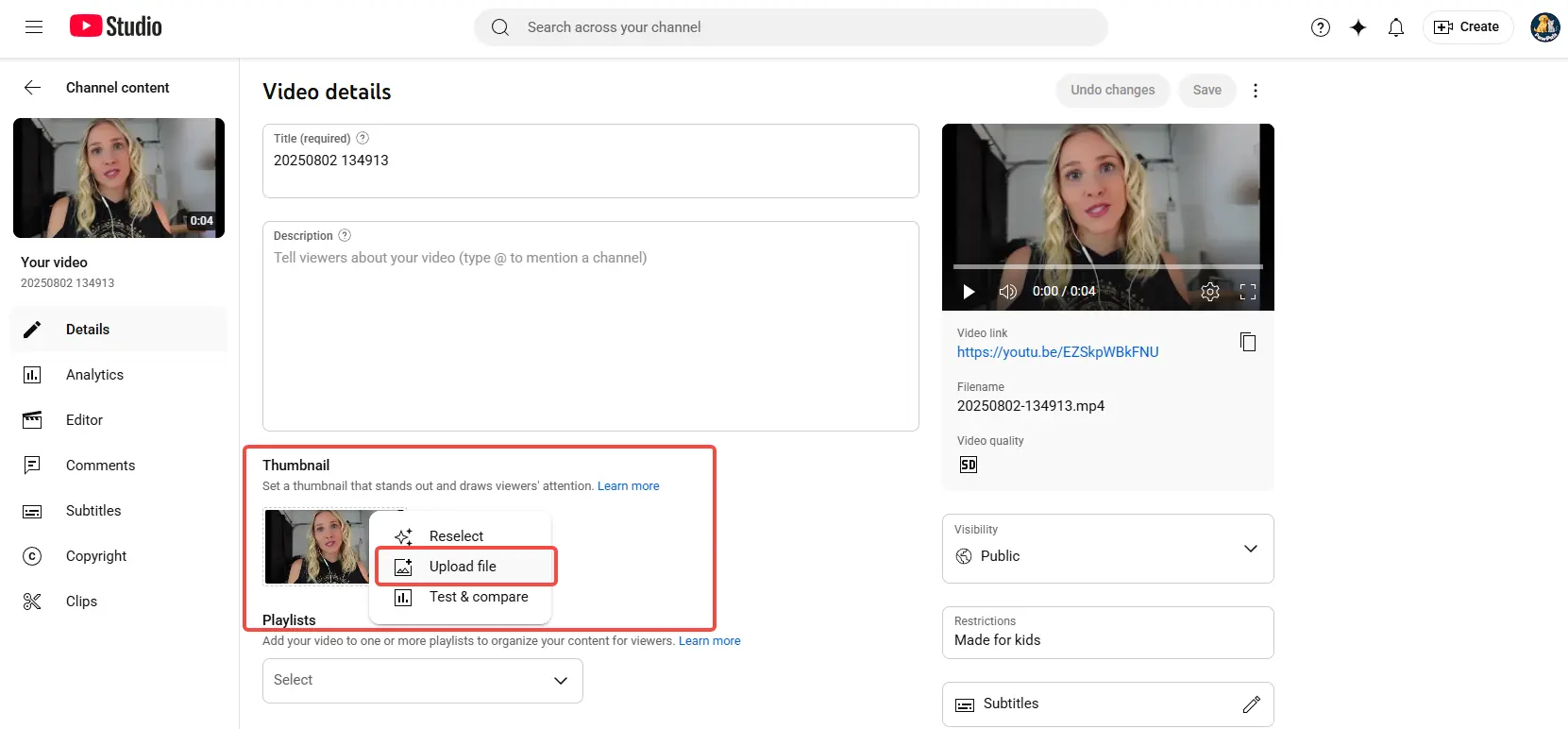
Desktop (YouTube Studio)
The desktop environment remains the most robust interface for executing metadata manipulation, providing access to advanced tools like native A/B testing.
| Step | Action Required in YouTube Studio |
|---|---|
| 1. Access Platform | Navigate to studio.youtube.com via a desktop web browser. |
| 2. Initiate Upload | Click the “Create” button in the upper right, then select “Upload videos”. |
| 3. Select Media | Choose the finalized video file from the local computer storage. |
| 4. Locate Section | In the “Details” step, scroll down to the dedicated “Thumbnail” subsection. |
| 5. Trigger Upload | Click the specific button labeled “Upload thumbnail”. |
| 6. Inject Asset | Select the custom image file (optimized under 50MB) from the directory. |
| 7. Finalize | Complete the remaining metadata fields (Title, Description, Tags) and publish. |
Mobile (YouTube App)
| Step | Action Required in Mobile App |
|---|---|
| 1. Open Application | Launch the primary YouTube mobile app on iOS or Android. |
| 2. Start Upload | Tap the ”+” icon at the bottom center, then select “Upload a video.” |
| 3. Choose Video | Select the target media file from the device’s camera roll or gallery. |
| 4. Access Preview | Tap the small thumbnail preview area at the top left of the metadata screen. |
| 5. Select Custom | Choose the “Custom thumbnail” option from the resulting prompt. |
| 6. Choose Image | Select the pre-designed graphic from the phone’s storage (under 2MB). |
| 7. Complete | Finish adding the title and description, then complete the upload. |
How to Change a Thumbnail on an Existing Video
Updating a cover image post-publication represents a highly effective tactic for reviving stagnant content. When videos experience algorithmic decay, realigning older assets with current visual trends can re-trigger algorithmic impressions.
Desktop
| Step | Action Required in YouTube Studio |
|---|---|
| 1. Open Dashboard | Navigate to YouTube Studio (studio.youtube.com). |
| 2. Access Content | Click “Content” in the left-hand navigation menu. |
| 3. Isolate Asset | Hover the cursor over the specific video requiring a visual update. |
| 4. Enter Edit Mode | Click the pencil icon labeled “Details”. |
| 5. Modify Image | Hover over the existing image, click the Options menu (three dots), and select “Change”. |
| 6. Select File | Choose the new, optimized image from the local machine. |
| 7. Save | Click “Save” in the top right corner. Global CDN propagation may require several hours. |
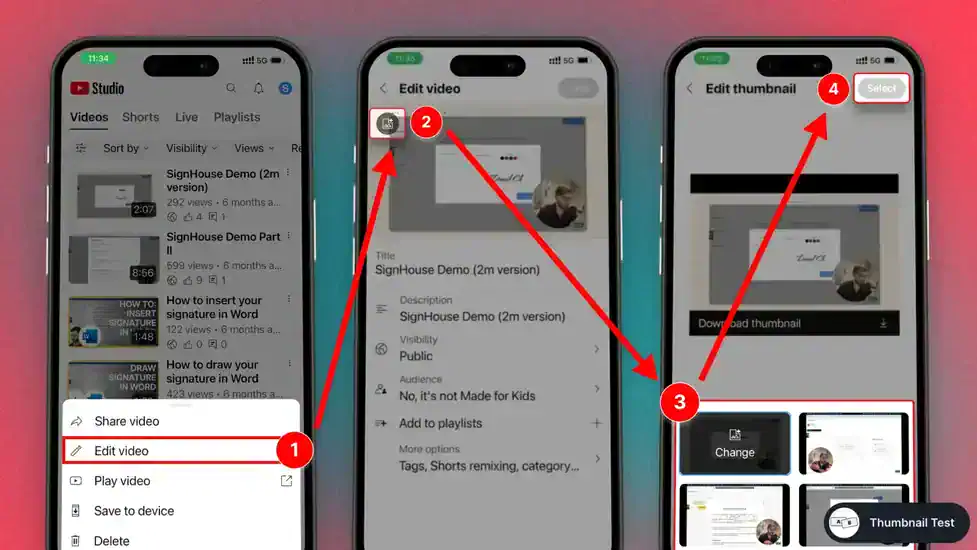
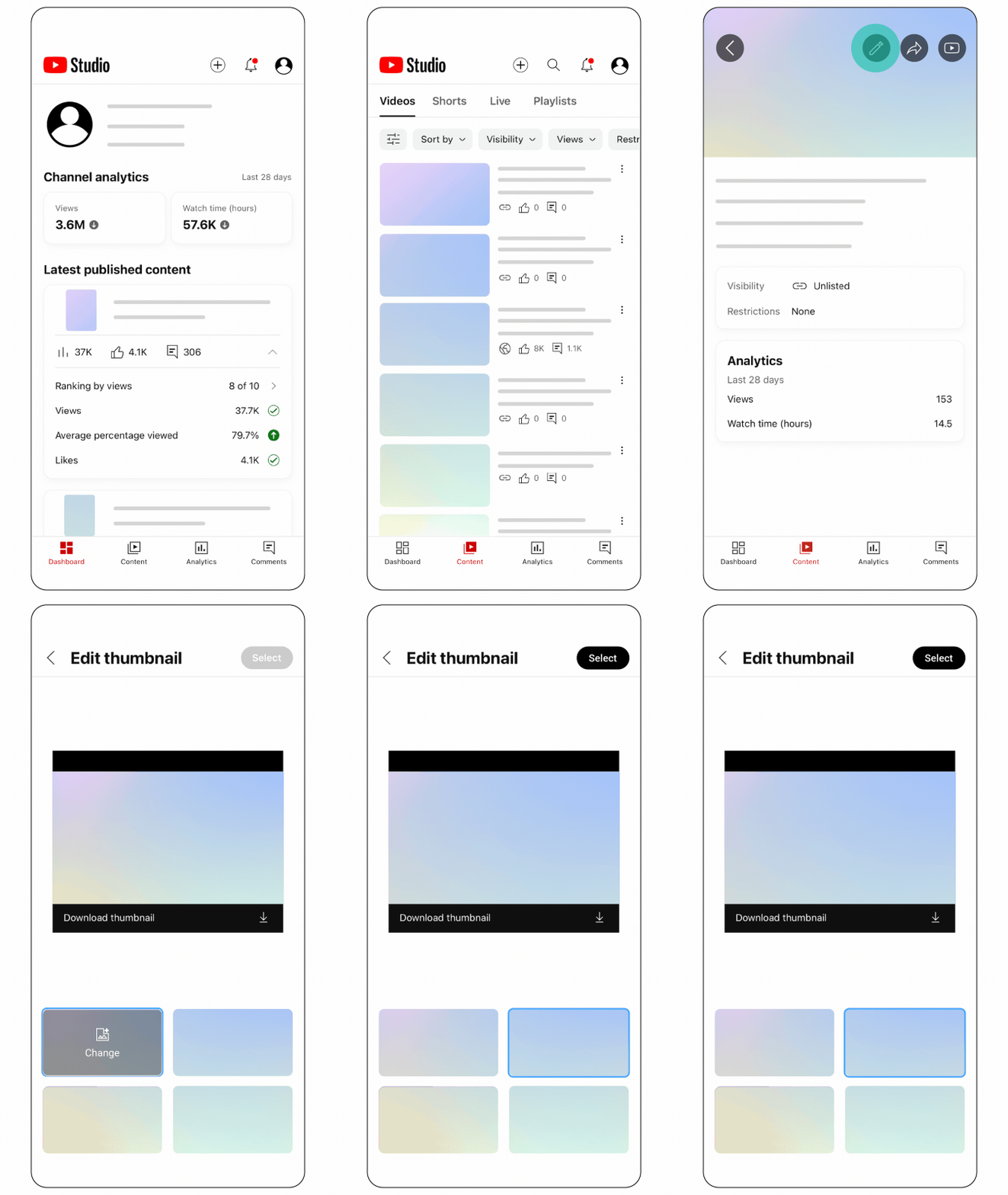
Mobile (YouTube Studio App)
| Step | Action Required in YouTube Studio App |
|---|---|
| 1. Launch App | Open the dedicated YouTube Studio app (separate from the main viewing app). |
| 2. Select Video | Tap “Content” and select the specific video requiring modification. |
| 3. Edit Metadata | Tap the pencil (Edit) icon at the top of the interface. |
| 4. Edit Graphic | Tap the secondary pencil icon directly overlaying the current thumbnail area. |
| 5. Choose Source | Select “Change” or “Custom thumbnail”. |
| 6. Select File | Pick the new image from the device’s photo gallery. |
| 7. Apply Update | Tap “Select” then “Save” to finalize the change. |
Comprehensive Guide to YouTube Shorts Thumbnails
The architectural framework governing YouTube Shorts differs radically from traditional video management. As vertical video consumption eclipses 70 billion daily views globally, the underlying algorithm driving the continuous Shorts feed has evolved to prioritize “swipe-away rates” and “engagement density” over traditional click-through metrics. However, the thumbnail remains a mission-critical asset for long-tail discovery.
Shorts are actively integrated into standard search engine results pages (SERPs), channel page grids, and external embeds. In these environments, the video does not auto-play; therefore, the thumbnail dictates the initial interaction. For a complete walkthrough of the Shorts upload process, see the Full Shorts upload guide.
Do YouTube Shorts Need Thumbnails?
YouTube Shorts absolutely require optimized thumbnails, though their mechanical function differs from long-form content. Within the continuous vertical “Shorts Feed,” the video autoplays instantly, rendering the thumbnail invisible. Success in this feed relies entirely on the hook engineered into the first three seconds of the video.
However, the algorithm also distributes Shorts through traditional search interfaces. Since the January 2026 UI update allowing viewers to specifically filter search results to include or exclude Shorts, vertical content competes directly for clicks. Shorts deployed with custom-optimized thumbnails record up to an 85% higher click-through rate in search results compared to auto-generated frames. Neglecting this visual packaging restricts distribution solely to the volatile Shorts Feed, eliminating sustainable search-based traffic.
Shorts Thumbnail Size and Dimensions
The dimensional parameters for Shorts introduce significant technical complexity due to container masking and UI cropping. The native format for a Short is 1080 x 1920 pixels (9:16 vertical aspect ratio).
| Parameter | Value |
|---|---|
| Native Resolution | 1080 x 1920 px |
| Native Aspect Ratio | 9:16 (vertical) |
| Search Display Ratio | 16:9 (horizontal container crop) |
| Minimum Dimension | 640 px height |
| Max File Size (Desktop) | 50 MB |
| Recommended Format | PNG (for text-heavy) or JPG (for photographic) |
The paradox of Shorts thumbnails is that the YouTube ecosystem frequently forces these vertical assets into horizontal 16:9 display containers. When a Short appears in a desktop search result or a suggested sidebar, the platform dynamically crops the center of the vertical image to create a horizontal rectangle. If critical text or focal points sit at the extreme top or bottom edges, the 16:9 crop will completely sever that information.
To mitigate this, designers must restrict essential typography, faces, and product reveals strictly to the center horizontal “safe zone.” The image should be uploaded as a 1080x1920 file but conceptually designed as a hybrid. For pixel-perfect scaling and safe zone overlays, refer to the Complete Shorts size specs.
How to Change Shorts Thumbnail on Mobile
The primary YouTube mobile application houses the most reliable mechanism for setting the visual cover of a vertical video.
| Step | Action Required |
|---|---|
| 1. Initialize Upload | Launch the YouTube mobile app and tap ”+” to upload a Short. |
| 2. Select Media | Choose the vertical video from the device gallery. |
| 3. Navigate to Details | Advance to the “Add Details” screen. |
| 4. Engage Frame Selector | Tap the embedded “Pencil” icon on the video preview module. |
| 5. Isolate Frame | Drag the timeline scrubber frame-by-frame to the most compelling moment. |
| 6. Lock Selection | Tap “Done” to finalize the thumbnail and complete the upload. |
The “Baked-In” Frame Workaround:
Because the mobile frame selection tool restricts creators to actual footage from the video, advanced creators use video editors like DaVinci Resolve, Premiere Pro, or CapCut to bypass this. The process involves designing a polished 9:16 graphic in Photoshop or Canva, then injecting it as a single frame directly into the video timeline (typically at the very end). During upload, the creator scrubs precisely to this hidden frame using the pencil tool. This effectively simulates a custom upload while ensuring flawless branding.
How to Change Shorts Thumbnail on PC
Historically, the desktop architecture entirely lacked the capacity to manipulate Shorts thumbnails. However, sweeping 2026 backend updates introduced total parity for eligible accounts.
YouTube Partner Program (YPP) creators, and increasingly the broader verified user base, can now upload fully custom standalone files directly through the desktop YouTube Studio.
| Step | Action Required |
|---|---|
| 1. Access Interface | Open YouTube Studio on a computer. |
| 2. Filter Content | Navigate to “Content” and apply the “Shorts” filter. |
| 3. Engage Editor | Select the target Short and click the “Details” pencil icon. |
| 4. Utilize Options | In the thumbnail module, choose from: auto-generated frame suggestions, “Ask Studio” AI generation, or “Upload Custom Thumbnail”. |
| 5. Upload Asset | Inject the optimized custom asset (under 50MB) and save. |
Can You Change Shorts Thumbnail After Posting?
The ability to modify a Short’s thumbnail retroactively depends on the upload mechanism and account eligibility.
Mobile limitation: If the creator used the frame-selection (pencil icon) method on mobile, the thumbnail is permanently locked the moment the Short is published. The mobile app physically removes the pencil icon from all post-publication editing flows. The only method to change a poorly performing visual in this scenario is to delete the video and re-upload it. This is highly risky: if the Short has accrued meaningful momentum, deleting it will permanently wipe out that distribution.
Desktop advantage: Accounts with access to the 2026 desktop Studio custom upload update can change a Shorts thumbnail retroactively. By accessing the desktop Studio, navigating to the specific Short, and using the “Change” function within the thumbnail module, eligible creators can hot-swap the visual asset at any time without disrupting ongoing algorithmic distribution.
Shorts Thumbnail Not Working? Fix Common Issues
Administrators frequently encounter failure states when attempting to manage vertical video metadata.
The Pencil Icon is Missing on Mobile: If the pencil icon fails to materialize during the mobile upload flow, it typically indicates a hardware or software conflict. This error most frequently occurs when uploading via an iPad or an outdated app version. The remedy requires transferring the video file to a smartphone and executing the upload via the latest app build.
Custom Upload Option Unavailable on Desktop: If the desktop Studio fails to present the “Upload Custom Thumbnail” option for a Short, the account likely lacks phone verification, or the 2026 feature rollout has not yet reached the specific geographic region or channel tier. Ensure “Advanced Features” are enabled in settings.
Thumbnail Reverts or Fails to Display: In approximately 95% of cases where a Shorts thumbnail fails to display publicly, the error stems from CDN caching delays. When a new image is injected, global servers take time to synchronize. Clear your local browser cache, view the link in an incognito window, and allow 24 to 48 hours for complete global propagation.
To verify visual rendering prior to deployment, use our Thumbnail Previewer to simulate how the thumbnail appears across various surfaces.
Strategic Design Best Practices (2026 Edition)
Executing a flawless technical upload is irrelevant if the asset fails to convert impressions into clicks. Over 63% of YouTube viewership occurs on mobile devices, dictating that all visuals must be constructed for extreme legibility at minimal scaling. Use our Thumbnail Previewer to test rendering before publishing.
| Design Principle | Application Strategy |
|---|---|
| Face-First Design | Thumbnails featuring expressive human faces appear in 69% of top-performing content and 80% of viral outliers. Position faces to occupy 30-50% of the canvas with eyes in the upper third. |
| Three-Word Formula | Thumbnails containing three words or fewer achieve a 30% higher CTR. Use bold, sans-serif fonts (Impact, Bebas, Arial Black) with thick drop shadows. Never repeat the video title in the image. |
| High-Contrast Color Theory | Avoid YouTube’s native white, black, and red. Use complementary pairings like neon yellow against deep violet, or vivid cyan against dark gray for maximum visual separation. |
| Create Visual Curiosity | The image should introduce a compelling question that only watching the full video resolves. |
| Test Multiple Versions | Use YouTube’s Test & Compare feature to deploy up to three variations. The system crowns a winner based on Watch Time share, not raw CTR. Note: A/B testing does not currently support Shorts. |
Keep learning:
- 📊 High CTR Thumbnails Guide - Design tips for higher CTR
- 🎨 MrBeast Thumbnail Formula - Study the best
- 🧪 Thumbnail A/B Testing Guide - Test and improve
- ⬇️ YouTube Thumbnail Downloader - Download reference material
- 📥 YouTube Thumbnail Download Guide - Save thumbnails for research
- 💼 YouTube Thumbnail Design Service - Need a pro? Get custom designs
Troubleshooting Common Thumbnail Errors
| Error / Symptom | Cause | Fix |
|---|---|---|
| ”Cannot Upload Custom Thumbnail” | Account lacks phone verification. | Settings > Channel > Feature Eligibility > verify with phone number. |
| Thumbnail Remains Gray or Blank | CDN synchronization delay or browser cache. | Purge browser cache, view in incognito, wait 24-48 hours. |
| Image Appears Pixelated | Asset below 1280x720 minimum or heavy JPG compression. | Export as PNG at 1920x1080. |
| ”Daily Limit Reached” Error | Exceeded velocity limits for metadata changes. | Wait a full 24-hour cycle for the throttle to reset. |
| File Size Rejected | Image exceeds storage parameters. | Mobile: compress below 2MB. Desktop: below 50MB. |
| Feature Disabled Automatically | Community Guidelines strikes for deceptive imagery. | Wait for strike expiration (typically 90 days) and ensure compliance. |
Frequently Asked Questions
How do I add a custom thumbnail to a YouTube video?
Open YouTube Studio, select the “Content” tab, isolate the target video, click the “Edit” pencil icon, and select “Upload thumbnail.” The channel account must be fully verified via a phone number to unlock this feature, and the image must meet the platform’s resolution and size requirements (1280x720 minimum, under 50MB on desktop).
Can I change a YouTube thumbnail after uploading?
Yes. Through YouTube Studio, administrators can retroactively replace a thumbnail at any time by selecting the video, hovering over the existing image, and choosing the “Change” option. Global updates may take several hours to reflect across all servers due to CDN caching.
How do I change the thumbnail on a YouTube Short?
During the mobile upload process via the main YouTube app, tap the pencil icon embedded in the video preview screen to scrub through the timeline and select a specific frame. Alternatively, eligible desktop users can upload custom images directly via the YouTube Studio Shorts tab using the custom upload button or Ask Studio AI.
Can you change a YouTube Shorts thumbnail after posting?
If utilizing the mobile app’s frame selection tool, the thumbnail is permanently locked once the Short goes live. However, accounts with access to the 2026 desktop Studio custom upload update can alter the image retroactively by navigating to the Short’s details page and uploading a replacement file.
What size should a YouTube Shorts thumbnail be?
The native required resolution is 1080 x 1920 pixels to maintain a vertical 9:16 aspect ratio. Designers must restrict vital text to the exact center to prevent cropping, as search results frequently force the image into a horizontal 16:9 display container. See our Size Guide - Shorts Section.
Why can’t I change my YouTube Shorts thumbnail?
If the pencil icon is missing during upload, it was likely initiated on an unsupported device (like an iPad or desktop browser) rather than a smartphone app. If attempting to upload a custom file on desktop, the account may lack phone verification, or the feature rollout has not reached the specific channel yet.
Do YouTube Shorts need thumbnails?
Yes. While the continuous autoplaying “Shorts Feed” bypasses the thumbnail entirely, these visual assets are critical for driving clicks from standard search results, channel pages, and external embeds. Custom Shorts thumbnails can boost search CTR by up to 85%, ensuring long-tail traffic outside of the feed.
How to add a custom thumbnail to YouTube Shorts on phone?
Currently, the mobile app strictly permits selecting a frame from the video timeline via the pencil icon. To bypass this limitation, creators use video editing software to insert a custom-designed image as a single frame into the video file, then select that specific hidden frame during the upload process using the timeline scrubber.
Can you upload a custom thumbnail for YouTube Shorts?
Yes, but the capability depends on hardware. Verified creators on the desktop Studio can upload custom files directly via the 2026 update. Mobile users must embed the custom image into the video file prior to upload and use the frame selector to isolate it during the publishing process.
How to download a YouTube Shorts thumbnail?
Use our YouTube Thumbnail Downloader by pasting the video’s URL into the interface. The tool fetches the uncompressed, original image file (MAXRESDEFAULT), which is highly useful for competitor CTR analysis and design research. For detailed methods, see the YouTube Thumbnail Download Guide.
What is the best format for Shorts thumbnails?
The system accepts JPG, PNG, GIF, BMP, and WEBP formats. PNG is highly recommended for graphics with dense typography to avoid compression blurring, while JPG offers optimal quality-to-size ratios for primarily photographic assets. The maximum file size is 50MB on desktop.
How to create a thumbnail for YouTube Shorts?
Establish a 1080 x 1920 vertical canvas. Implement a single, high-contrast focal point (preferably an expressive face), limit text to three bold words, and keep all critical elements centered to survive the platform’s automatic 16:9 desktop cropping mechanism. For design inspiration, study our MrBeast Thumbnail Formula.
What size should a traditional YouTube thumbnail be?
The standard aspect ratio is 16:9, with a recommended resolution of 1280 x 720 pixels up to 3840 x 2160 pixels. The maximum file size for desktop uploads was updated in 2026 to 50MB to accommodate 4K and 8K television displays without compression artifacts. See the complete YouTube Thumbnail Size Guide.
Why are my custom thumbnails turned off?
The platform automatically disables the capability if the account lacks phone verification, or if the channel has accumulated Community Guidelines strikes related to deceptive practices. Navigate to Settings > Channel > Feature eligibility to check your verification status and resolve any outstanding issues.
Can I A/B test my YouTube thumbnails?
Yes, for standard long-form content. YouTube’s Test & Compare feature allows simultaneous deployment of up to three thumbnails to determine the highest Watch Time share. The system currently does not support A/B testing for Shorts, scheduled live streams, or Premieres. Learn more in our Thumbnail A/B Testing Guide.
How do I make my YouTube thumbnail look good on mobile?
Use large typography (3-5 words max), high-contrast background colors, and a single clear focal point. Over 63% of YouTube views happen on mobile devices where thumbnails can display at roughly 116x65 pixels, meaning extreme simplicity always wins. Use our Thumbnail Previewer to test mobile rendering before publishing.